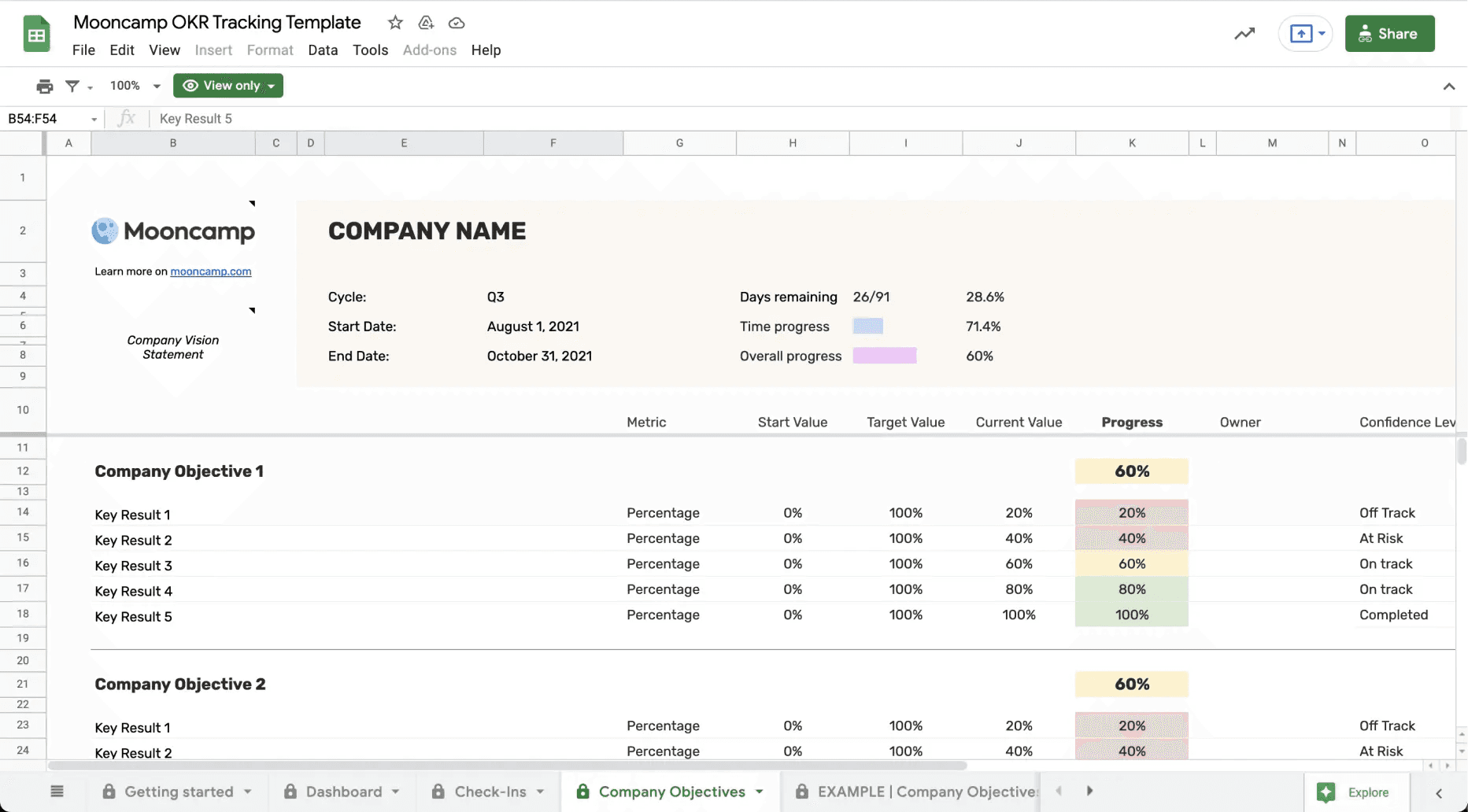
This Google Sheets OKR template is a free, multi-tab spreadsheet with a company-wide dashboard, separate company and team OKR sheets, built-in progress formulas, and a check-in tab. It runs natively in Google Sheets (co-authoring, version history included) and can be exported to Excel in one click. Ready to use in under 10 minutes. Learn how to use the OKR template down below or download it right away.
Are you looking for a place to track all your OKRs? Then you've come to the right place.
This Google Sheets OKR Template is intuitive, easy to maintain and can be used by any team - regardless of size or industry.
However, before starting to track OKRs within a Google Sheets OKR Tracking Template, make sure that both company and team OKRs are clearly defined. Taking enough time in OKR planning is an important first step toward a successful implementation.
But first, a brief refresher on Objectives and Key Results.
What are Objectives & Key Results?
Objectives and Key Results are an agile framework that helps organizations better set goals and avoid getting lost along the way. Used professionally, the OKR methodology can lead to greater transparency, clearer alignment, more focus, and better agility for an organization. Objectives are "non-measurable" but inspirational goals that describe the long-term success of the organization. Key Results serve as results-oriented checkpoints.
The OKR method originated at Intel in the 1970s and became known to a wider audience through its application at successful tech companies such as Google, LinkedIn, Spotify, and Slack. Today, OKRs are used by teams and organizations of all sizes.
You can learn more about OKRs in our OKR Guide.
What is included in this template
- Various tips for implementing a successful OKR system
- A guide to team-based check-ins
- A dashboard for OKR progress
- OKR tabs for your organization and your various teams
- Plus, a few OKR examples to inspire you
How to use the Google Sheets OKR template
1. Accessing the template
Open the Tracking Template in Google Sheets. A Google account is required to use the template. If you don't have one - or your team uses Microsoft for example - you can simply download the Excel version. If the template is used via Google Sheets, it must be copied to Google Drive before you can open it.
Tip: We recommend having one or more people responsible for the OKR process. Especially if you have many teams in your organization.
2. Sharing the Google Sheets OKR tracking template
Because OKRs only really work well when everyone pitches in, it's a good idea to make the template available to everyone. This is easily done by using the blue "Share" button located in the upper right corner.
When adding the respective contact information, the access authorization must then be set to "Edit". This way really everyone who accesses the template can contribute. If this is not desired, the type of permission can be set to "Viewer" - this way only the admin and other authorized employees can edit the template.
3. Getting started
As soon as you open the file, the first "Getting Started" tab will guide you through the features of the OKR tracking template and where to find them. Also, it will tell you where to put which information. Furthermore, you can find helpful resources and links around OKRs here.
4. OKR dashboard overview
In the second tab you will find the dashboard. Here you can easily view the progress of an individual team or the entire company.
Tip: The dashboard automatically pulls information from the different company and team sheets. For example, if the Marketing team updates one of their Key Results in the Team tab, the progress bar in the Dashboard tab will also increase.
5. Check-ins
For OKRs to impact daily work, regular check-ins are critical. Regularity plays an important role in enabling OKRs to contribute to business success. In the second "Check-In" tab, you'll find instructions for a regular OKR check-in.
Tip: Especially because Objectives and Key Results sometimes need to be adjusted at the beginning of a new cycle, a stringent check-in routine is essential.
6. Adding cycle information
Before you add your Objectives and Key Results, the active cycle needs to be adjusted at the top of each OKR sheet. From here, the sheets will automatically calculate the remaining time of the cycle and synchronize the dashboard.
7. Setting company and team OKRs
In practice, OKRs are first developed top-down and then bottom-up. That means: in the first step, the leadership usually sets the OKRs of the company. After that, the teams are encouraged to formulate OKRs themselves that are consistent with the higher-level company OKRs. If your OKRs are already defined, first add the team names at the top of each sheet, then fill in your Objectives and Key Results.
For those who need a little OKR inspiration, see "EXAMPLE" tabs 5 & 7 for a few examples.
8. Adding supporting information
To update start and target values, adjust the information in columns H and I. To track and calculate the progress of your Key Results, adjust the current value in cell "J".
Optionally, you can fill in additional information for your OKRs, such as:
- Metric: What unit is used to measure the Key Result?
- Confidence Level: How confident are you that you will reach the Key Result at the end of the OKR cycle?
- Owner: Who is responsible for the Key Result and/or the Objective?
Tip: It is recommended to have no more than 5 Objectives with 1-5 Key Results each. If you exceed this limit, you run the risk of trying to do too many things at once. Set aspirational goals, but don't aim too high when you get started with OKRs and/or when you are a small team.
9. Final check
- Are all teams included?
- Are the Objectives aspirational enough?
- Do the Key Results feel ambitious, yet achievable?
- Are the Key Results easy to measure and actual results, not just tasks, projects, or KPIs?
- Do the Objectives have the right level of motivational discomfort (~ 70% confidence)?
- Are all OKRs and cycle information displayed correctly?
- Has a regular check-in process been set up?
Signs your Google Sheets setup has outgrown itself
A Google Sheets OKR tracker lasts further than most people expect. Co-authoring and version history paper over a lot of small problems. But there's a point where the sheet stops being the single source of truth and turns into something people organize around. The visible symptoms:
- The master sheet is no longer unique. At least one team has made their own copy to "tidy up" or "filter just our stuff."
- More than 30 key results total across the organization. The dashboard rollup needs manual formula fixes at the start of every new cycle.
- Version history stops helping. Restoring to a clean state means scrolling through dozens of revisions with no certainty which one has the correct numbers.
- Check-ins get skipped because the cell to update is buried on tab 7 and nobody remembers where.
- Access requests pile up. New hires and cross-functional partners spend the first day of the quarter waiting on permissions.
- A second layer has been bolted on to paper over template limits (IMPORTRANGE, linked charts, or a separate "reporting" doc). That layer is now a single point of failure.
If none of this applies, stay in Sheets. A working spreadsheet rarely benefits from added software overhead. If two or more do apply, a dedicated OKR tool like Mooncamp takes the source-of-truth job off the sheet and gives alignment its own home.