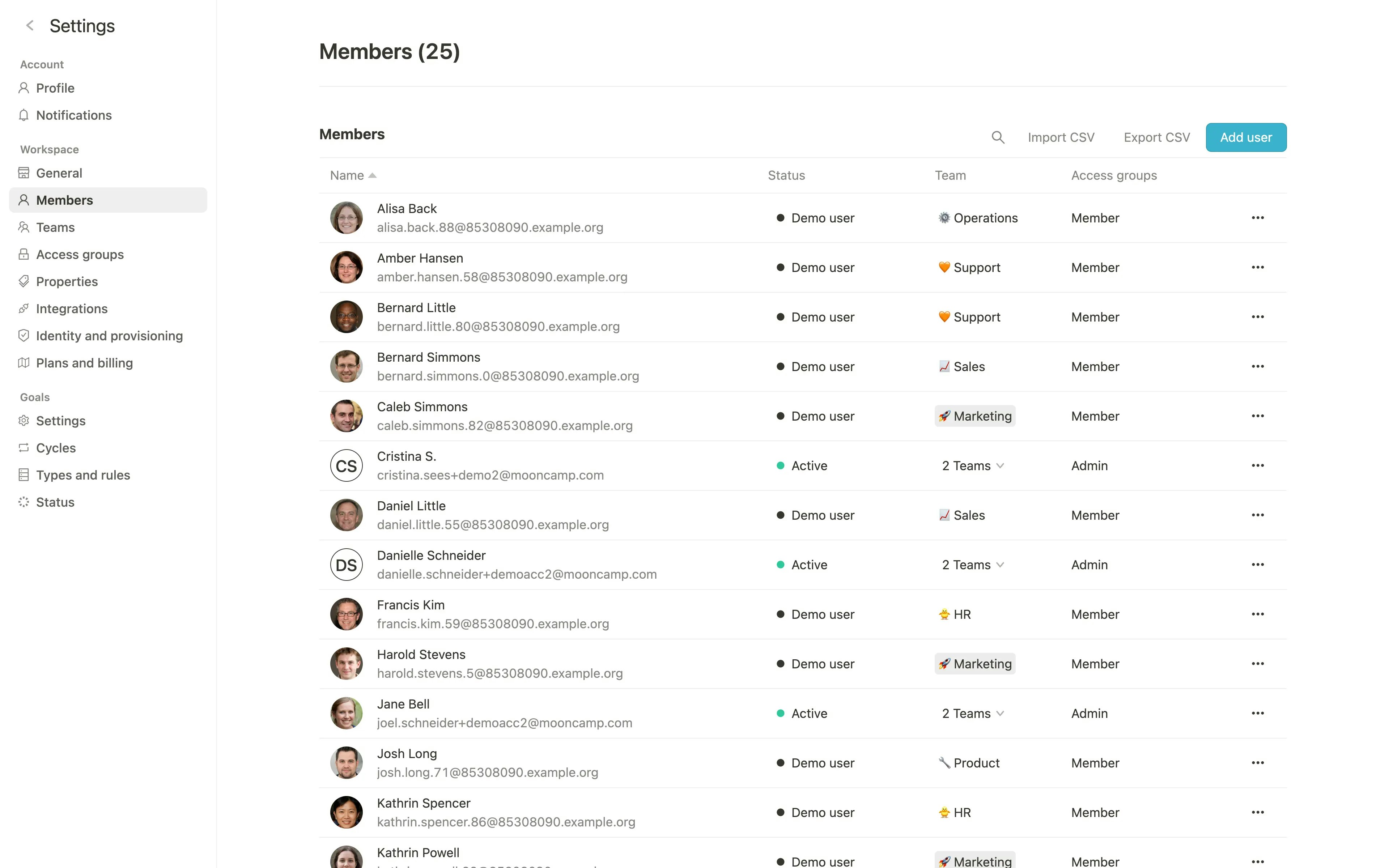
Settings > Members.
On the member management page you can:
- Add members manually
- Add multiple members via CSV import or export multiple members via CSV export
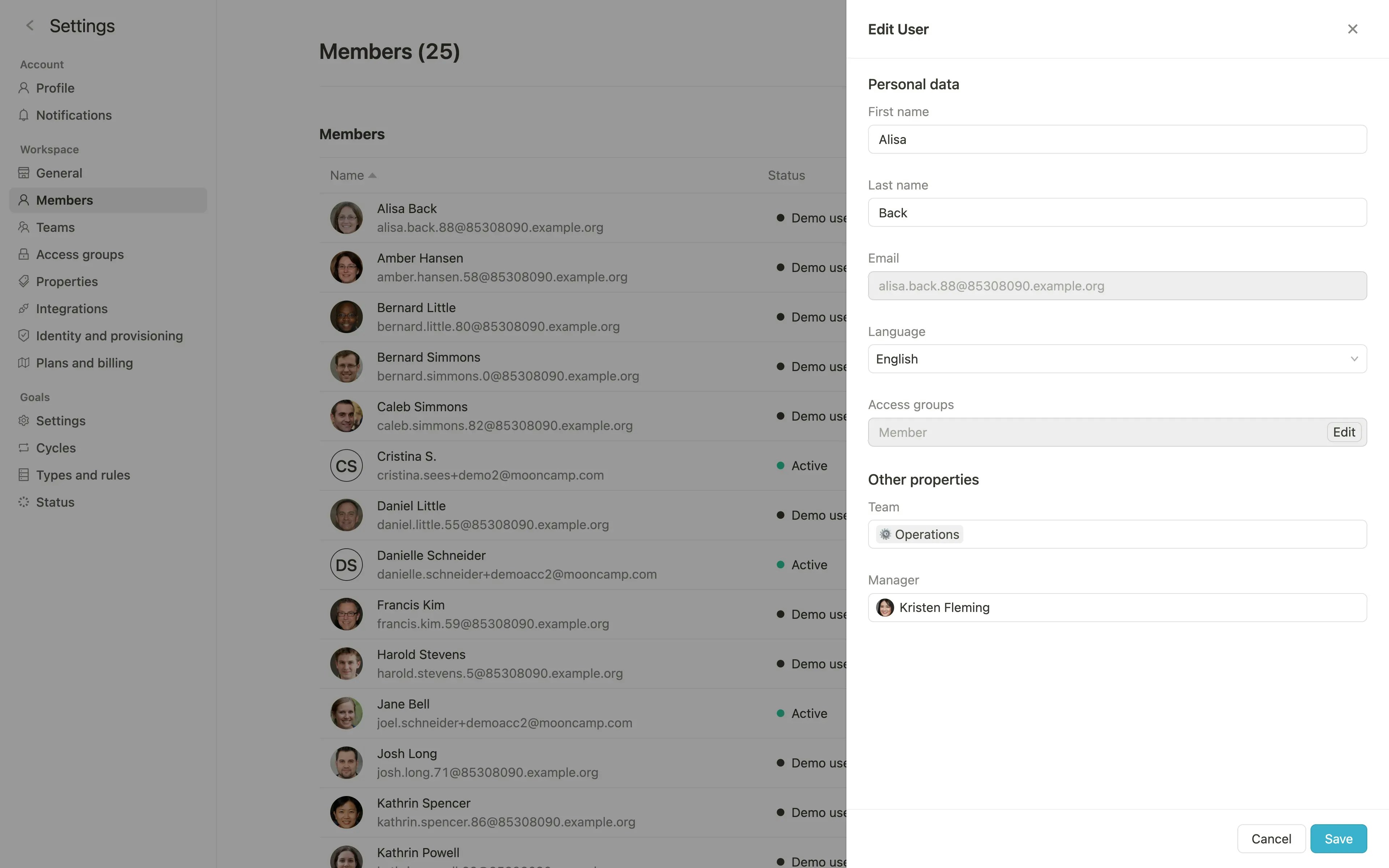
- Edit member information (name, email, language, …)
- Delete members from Mooncamp
- Send invitations to Mooncamp to individual members by email
Add members manually
Add user you can create a new user and specify name, email, account language, and any other custom properties you have created.
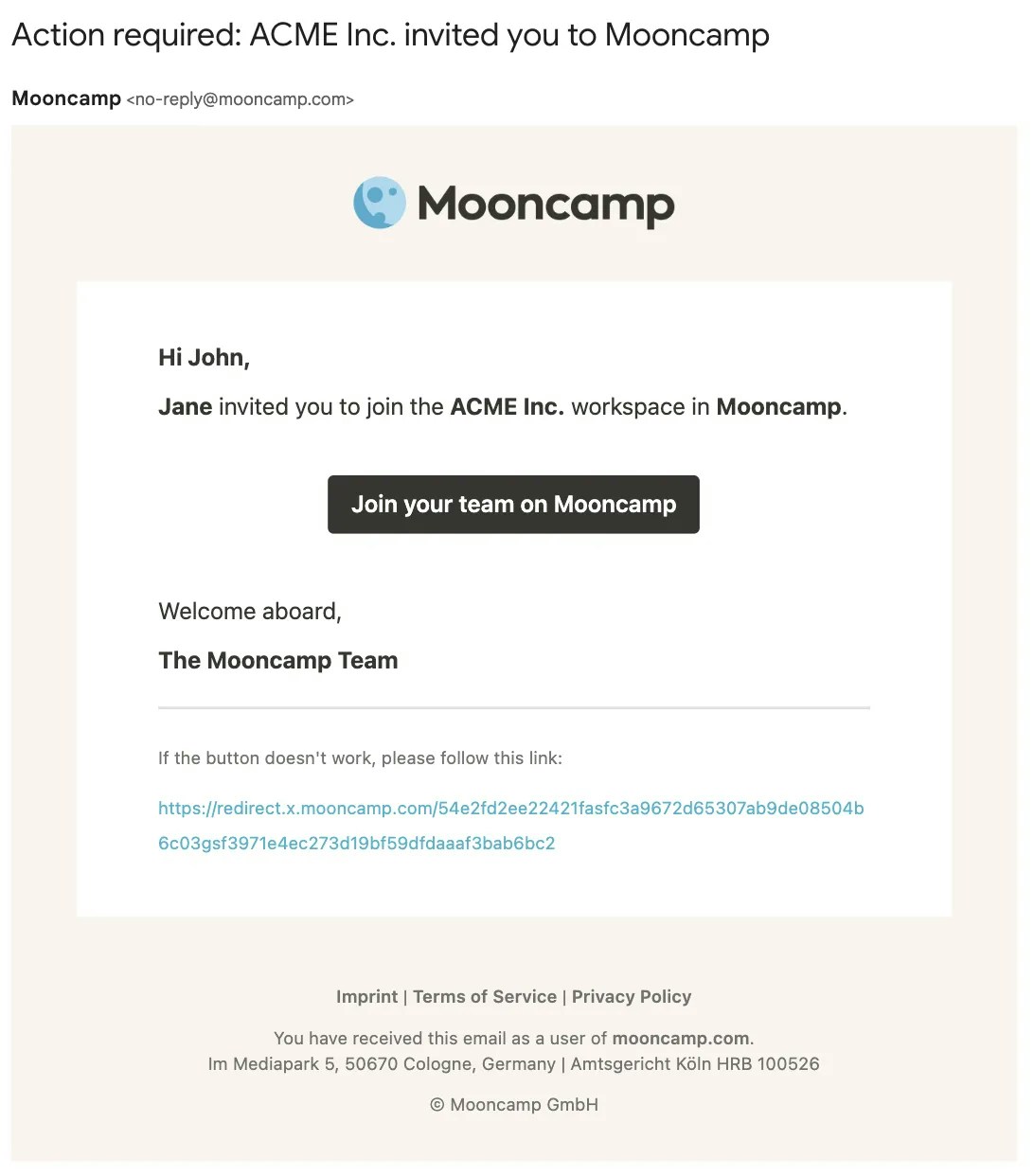
Send invitation email when adding a new member, the member will receive an invitation via email.
Import members via CSV
By clicking onImport CSV you can upload a CSV file (Comma Separated Value) with all members. Here you can also download a CSV file as a template.
For each new row in the CSV file a new member will be added.
Invite-Link
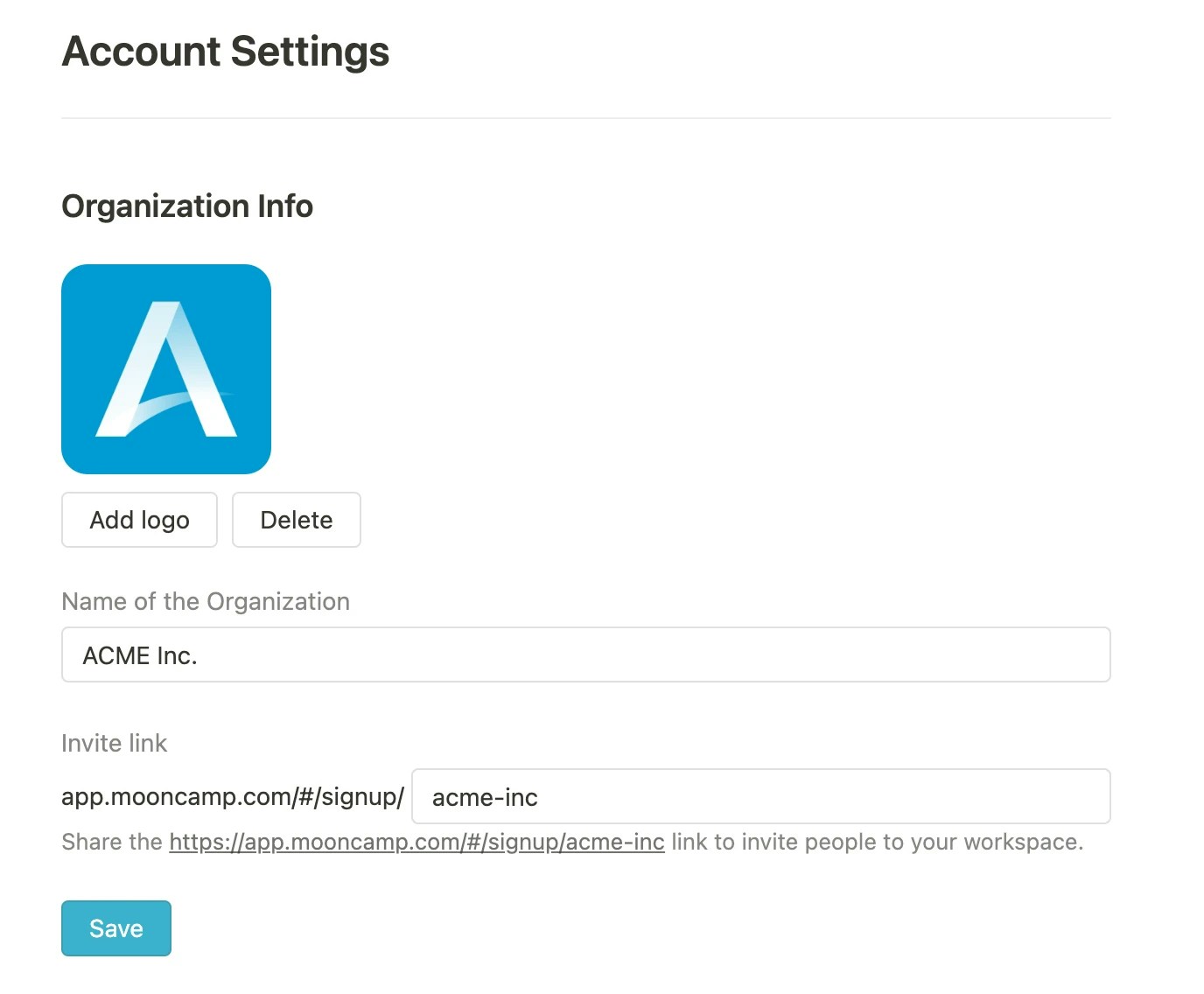
Once all members have successfully been added, you can use the invite-link to collectively invite existing users to Mooncamp. The link is located underSettings > General and can be copied there. Members can easily register using the link; an important requirement for this is that they have already been created within Mooncamp under Settings > Members.