

What SSO means in Mooncamp
SSO (“Single Sign-On”) lets your users log in to Mooncamp with their existing Microsoft or Google account instead of a separate Mooncamp password. Mooncamp offers three kinds of SSO:How it works
Setting up SSO with Microsoft or Google always follows the same pattern:- Mooncamp: an admin allows the login method in the settings.
- Users in Mooncamp: every user who should log in is added to your Mooncamp workspace with the same email address they use for their Microsoft or Google account. For Microsoft this is the sign-in address, the user principal name (UPN).
- Your identity provider: depending on your organization’s policies, your Microsoft or Google admin may have to approve Mooncamp once for the whole organization.
Allow login methods in Mooncamp
Go to Settings > Identity and provisioning. Under Access you find three switches:- Allow login via password
- Allow login via Google
- Allow login via Microsoft
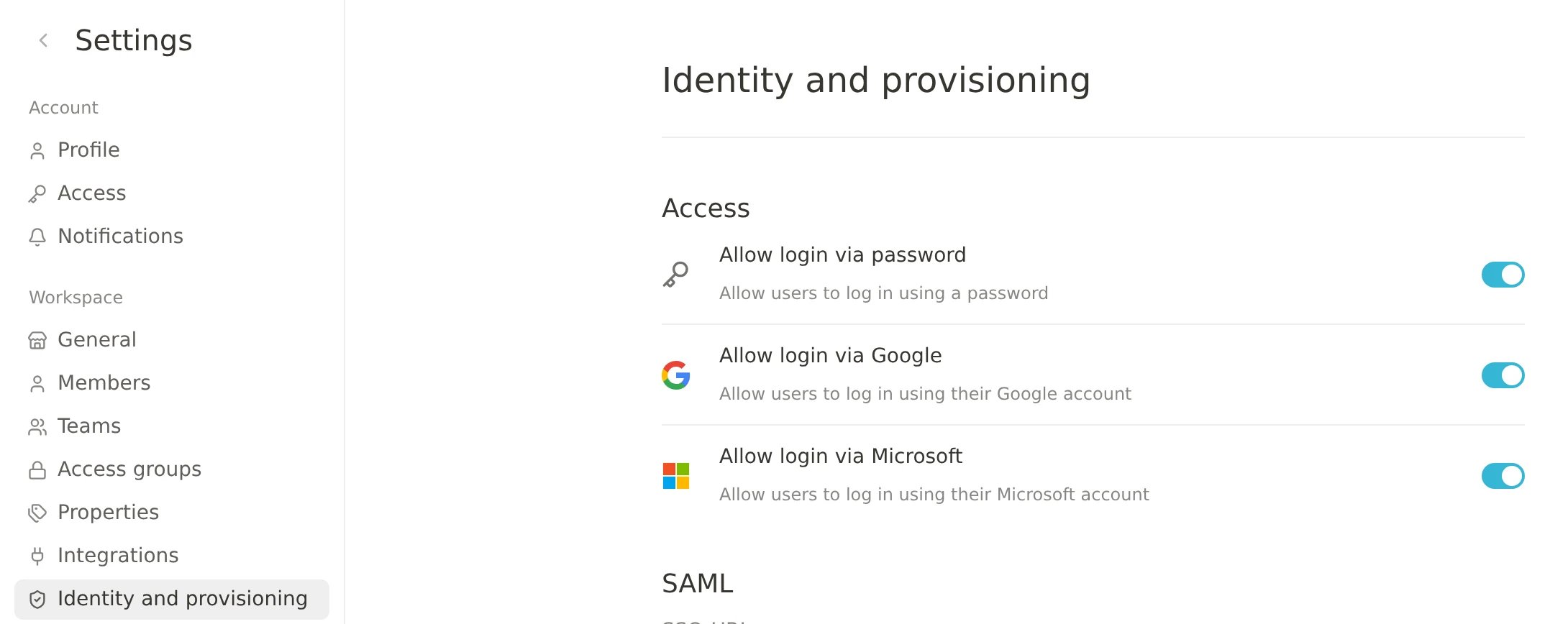
- Only users with write access to the workspace settings can see and change this page.
- At least one login method must stay switched on, so you can’t lock everyone out.
- You can’t switch off the login method you used for your current session, because that would log you out. Mooncamp asks you to log in again with a method that stays allowed, then you can save the change.
- If login via password is switched off, users who try it see a message asking them to use SSO.
SSO doesn’t add users to Mooncamp
SSO only handles how people log in. It doesn’t decide who has access:- Approving Mooncamp in Microsoft or Google doesn’t create any users in Mooncamp.
- User management stays in Mooncamp. Only people who were added to your workspace under Settings > Members can log in via SSO (see Managing members).
- If you want users to be created, updated and removed automatically from Microsoft Entra ID, use user provisioning via SCIM (Enterprise) in addition to SSO.